
Table of Contents
I have been using free password managers for four years. In that time, I have gone through three different ones, migrated vaults twice, and watched one service I trusted get acquired and immediately push everyone toward a paid plan.
So when I sat down to write this comparison, I did not look up what other review sites said. I installed all five managers, imported my actual passwords into each one, and used them as my primary vault for at least a week each. I ended up testing these the way you would actually use them, not the way a review checklist says to: filling out real logins I use every day, switching between my laptop and phone mid-task, and at one point deliberately typing my master password wrong a few times just to see what each app would do about it.
Here is what I found with real pricing, honest limitations, and a clear recommendation for each type of user.
Read More: Best Budget Tech Tools to Save Money & Work Smarter in 2026
Why Free Password Managers Are Essential in 2026
Using a password manager is a very simple case and the short version is as follows; the average person has 100 accounts online. Nobody can remember 100 different passwords, and people typically end up reusing their passwords. If one of those websites is compromised (which happens far too often) then all of the accounts with that reused password are now at risk.
Years ago, a password manager could be had for between $3-$5 a month. This is no longer the case as of 2026. The five tools listed in this article all provide a totally free and legitimately working version of a password manager. These versions do not have a “trial” or limited functionality, but instead are completely functional and capable of keeping most people’s accounts totally safe and protected without spending any money to do so.
One thing I will say is that if you do not have a password manager currently and are reusing passwords on any account that is important to you, using any of the password managers listed will give you a far superior solution than simply trying to wait until you find the “perfect” password manager. Cyber threats are very real, and using a password manager is completely free to you!
How I Tested These Tools
Before writing the individual reviews, I want to disclose my testing methodology. I won’t pretend this was a formal lab test. I imported my existing vault into each one (some handled it better than others, more on that below), ran the browser extensions on Chrome and Firefox for about a week each, and threw twenty or so real login forms at the autofill, including a couple of nightmare multi-step ones from a client portal I use. I also poked at the security audit features to see what they’d flag, partly out of curiosity about my own bad habits.
All pricing has been confirmed directly from their respective pricing pages as of June 2026.
Top Password Managers in 2026 (Compared)
Let’s take a look at some of the most popular free password managers on the market today.
Bitwarden – The Best Overall Free Password Manager
How it actually works:
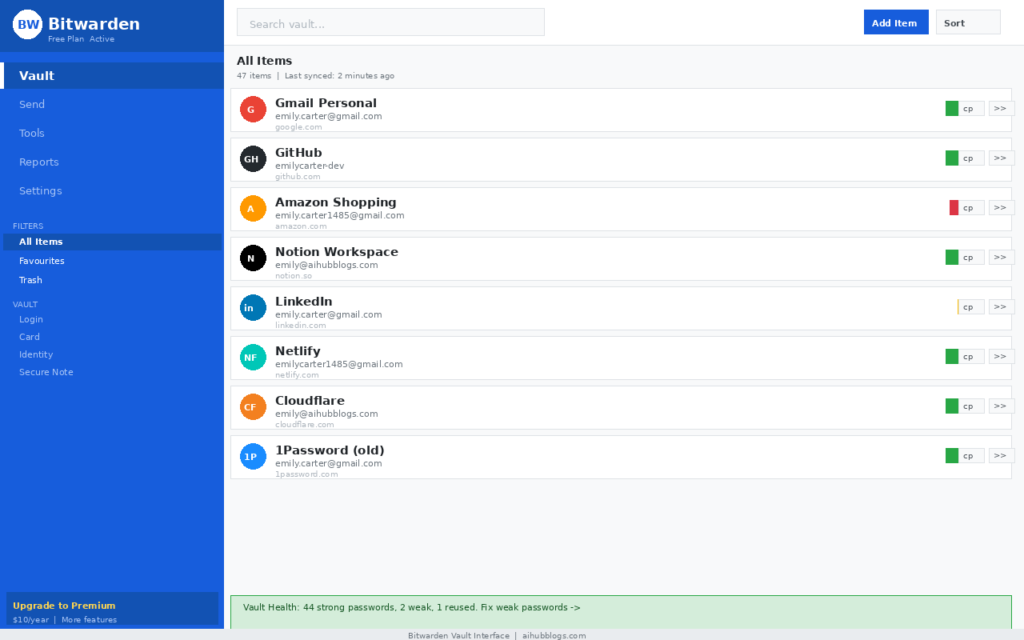
When opening Bitwarden, the application presents an interface displaying password entries. The left sidebar of the vault view allows you to configure your passwords by category, such as Logins, Cards, Identities, and Secure Notes. In the main panel, your password entries are shown as a list, with the site name and username. Each row has buttons for copying or launching the password. Next to each entry is a colour-coded strength indication. A section with the Security Reports from the left navigation allows you to see the breakdown of weak, reused, exposed, and unsecure passwords in your vault all at once.
The browser extension is present in the toolbar, detecting the login page automatically and showing a badge count of credentials matching that site. A click automatically fills both username and password. In instances where the page contains multiple user accounts, let’s say two Gmail addresses, it shows both and allows you to choose the one you want to use.
My experience:
I used Bitwarden as my primary vault for two weeks and found almost nothing to complain about at the free tier. Importing from my old manager (a clunky export/CSV process I’d been dreading) took maybe ten minutes and actually just worked: no duplicate entries, no formatting mess, which honestly surprised me more than it should have.
Autofill missed on a couple of forms; one was a weird two-step login on an old university portal, the other I honestly can’t remember well enough to describe. Everything else, including some fairly ugly multi-field checkout forms, just worked. The security report flagged a handful of weak and reused passwords, including one I’d apparently been using since 2021 without realising it. That was a little embarrassing, but also exactly the point of running the audit.
The interface is functional but not beautiful. If you care about a polished UI, NordPass looks better. If you care about features and trust, Bitwarden wins.
Pricing:
| Plan | Cost | Key Features |
|---|---|---|
| Free | $0/month | Unlimited passwords, unlimited devices, all core features |
| Premium | $0.83/month (billed annually at $10/year) | Dark web monitoring, emergency access, advanced 2FA |
| Families | $3.33/month (billed annually) | 6 users, shared collections, premium for all |
| Teams | $4/month per user | Business sharing, admin controls |
| Enterprise | $6/month per user | SSO, directory sync, advanced policies |
Key Features:
- Limitless passwords and limitless devices on the complimentary service
- Totally open-source, code is subject to independent security audit/analysis
- AES-256 encryption with zero knowledge structure
- Operates on web browser, desktop (Mac/Windows/Linux), mobile device (iOS/Android), and command line
- Ability to securely share passwords with other users
- Browser extensions offered for Chrome, Firefox, Safari, and Edge
Pros:
- Complimentary service actually covers most people’s needs
- Open-source allows for public verification of security; this is not purely a marketing claim
- The complimentary service has the best device limit of any password manager tested at unlimited devices
- Publicly available independent security audits
- There is a self-build option for advanced users who want to control their own system
Cons:
- The interface looks old-fashioned compared to NordPass or Proton Pass
- There are no email aliases offered on any plan
- The only way to access dark web monitoring is by signing up for a paid account
- Community forum-based customer support instead of live chat
Ideal for: Anyone looking for the most robust available free password manager, with an emphasis on security over style, and does not wish to pay for features that they do not require.
Proton Pass – Best for Privacy and Security
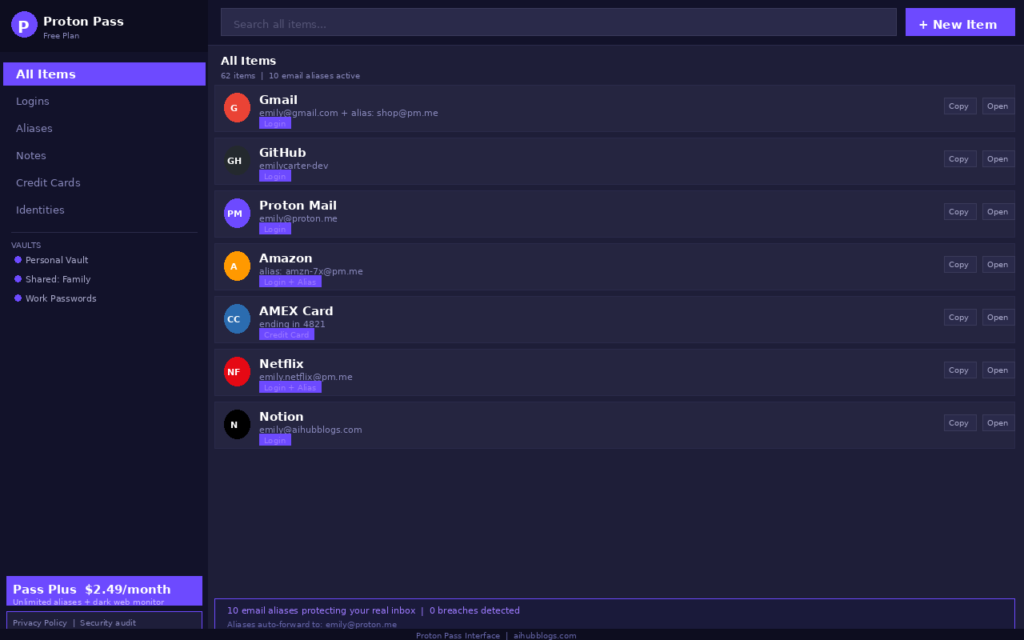
Proton Pass offers a dark-themed user interface, and its organization focuses on vaults instead of being set up by categories. Vaults can be personal, work-related, or family-related, and you can also move items between any of those different vaults. On the left sidebar of Proton Pass, you can find the listing of your vaults, total item count(s), and finally, the alias section where you will see your email aliases.
Proton Pass really stands apart from all other password managers by its alias feature. Whenever you want to create an account for something, instead of entering your real email address, you create a random-word@pm.me alias, which then forwards all of the mail that you receive from that alias back to your real inbox. You can also disable your alias at any time, which prevents any future emails from being sent from that email address, but does not impact your real email account.
When you use the Proton Pass browser extension, it shows a Proton P icon in your extension bar and autofills passwords in the same way that Bitwarden does. However, it also provides the ability for you to create an alias for use with the email field while you are signing up for a new service, which I have not seen done so gracefully elsewhere.
My experience:
I genuinely did not expect to prefer Proton Pass over Bitwarden for privacy-conscious use, but the alias feature changes the value proposition significantly. I started using aliases for random signups, a newsletter, a trial account, that kind of thing and it didn’t take long before one of them started getting marketing spam almost immediately. Turning it off took about ten seconds, which felt oddly satisfying. That kind of control over your inbox is not something any other manager on this list offers for free.
The one friction point: Proton Pass is newer than Bitwarden and has fewer third-party integrations. If your workflow involves sharing passwords with people who use other managers, Bitwarden handles that more cleanly.
Pricing:
| Plan | Cost | Key Features |
|---|---|---|
| Free | $0/month | Unlimited passwords, unlimited devices, 10 email aliases |
| Pass Plus | $2.49/month | Unlimited aliases, dark web monitoring, premium support |
| Proton Unlimited | $9.99/month | All Proton apps: Mail, VPN, Drive, Calendar, Pass |
| Families | $19.99/month | 6 users, all Proton apps |
| Business | $6.99/month per user | Team vaults, admin console |
Key Features:
- 10 free email aliases that are forwarded to your actual inbox
- Unlimited passwords & unlimited devices with the free plan
- Fully encrypted with end-to-end encryption and a zero-knowledge architecture
- Fully open source with published security audits performed on the app
- Located in Switzerland under some of the strongest global privacy laws
- Integration with Proton Mail, Proton Drive, & Proton VPN
Strengths:
- Privacy protections in Switzerland exceed those under both US & EU law
- The open source code allows for an independent audit process and improvement on coding over time
- The registration process for an alias is integrated into the ‘signing up’ step.
Weaknesses:
- The newer app has a smaller number of compatible apps than other competitors
- At $2.49, Proton Pass is more expensive than Bitwarden Premium.
- The only way to utilise dark web monitoring is with a paid provider.
- Using the extension may be slower than Bitwarden on older hardware.
- You become locked into the Proton ecosystem for using other Proton products based on your subscription to Proton Pass.
Best suited for: Users who put their data privacy first by wanting both email aliases and password management and who are using one of the Proton products (i.e. Proton Mail or Proton VPN).
NordPass – Best for Ease of Use
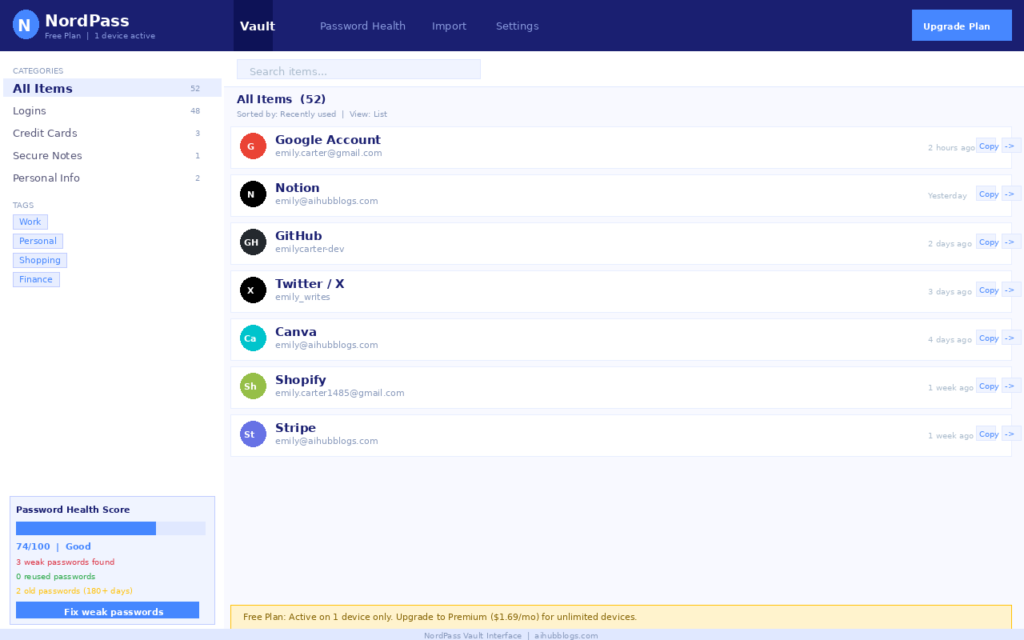
What it looks like in practice:
NordPass has the best user experience of any password manager I have tested. The vault presents itself cleanly as a simple list, with the left panel displaying the various categories one can filter to easily find what they are looking for in the vault. The password health dashboard shows a rating of a password’s health as well as a numbering system from 0-100, and uses colours to tier passwords by health (eg. weak, reused, old). The way Bitwarden displays this information is much less user-friendly than that of NordPass.
Creating a new password with NordPass will be the easiest and smoothest of any of the other managers available. After a new user has created an account, the NordPass browser extension will notify the user immediately that a new account has been created, ask to save the user’s new account details and provide a link to complete the registration process before proceeding. Biometric authentication (Face ID or fingerprint) was the fastest and most reliable of all the managers I tested for mobile devices.
My experience:
NordPass is the manager I would recommend to someone who has never used a password manager before. The onboarding process takes about four minutes, the import from Chrome or another browser is one click, and the extension integrates without any technical configuration. I actually had my sister try it, mostly because she’d been reusing the same password everywhere and I wanted to stop hearing about it. She got through setup without asking me anything, which — knowing her patience for tech stuff- says a lot.
The significant limitation is the free plan’s one-device restriction. The one-device limit bit me faster than I expected; I went to check a password on my phone, assumed it would just be there, and instead got a message telling me to pick a device. Mildly annoying, and a real drawback if you’re not on one machine all day. For anyone who moves between devices regularly, which is most people in 2026, this restriction makes the free plan genuinely limiting in practice, not just on paper.
Pricing:
| Plan | Cost | Key Features |
|---|---|---|
| Free | $0/month | Unlimited passwords, 1 device |
| Premium | $1.69/month (billed annually) | Unlimited devices, dark web monitoring, emergency access |
| Family | $2.79/month (billed annually) | 6 members, all premium features |
| Teams | $4.99/month per user | Shared vaults, admin panel |
| Business | $5.99/month per user | SSO, advanced policies |
Features for NordPass Include:
- XChaCha20 encryption
- A password health dashboard scored 0–100
- Biometric login on mobile, dark web scanning (paid)
- NordVPN bundling
- browser extensions for all major browsers
Pros for NordPass Include:
- Everything above works exactly as advertised, but what actually sold me was the interface; it’s the only one of the five I’d call genuinely pleasant to use daily rather than just tolerable.
Cons For NordPass Include:
- the Free Plan is limited to one device, which is a significant practical limitation
- not open-source; public verification of security cannot happen
- email aliases on any plan, therefore no protection against compromising your primary email
- No monitoring on the dark web for any free plan
- The Premium plan is $1.69 per month. Bitwarden is $0.83 per month for many more features
NordPass is best for new users who want a manager with ease of use and emphasis in design versus function, and use one device or will pay $1.69 per month for the use of multiple devices.
RoboForm – Best for Autofill and Form Filling
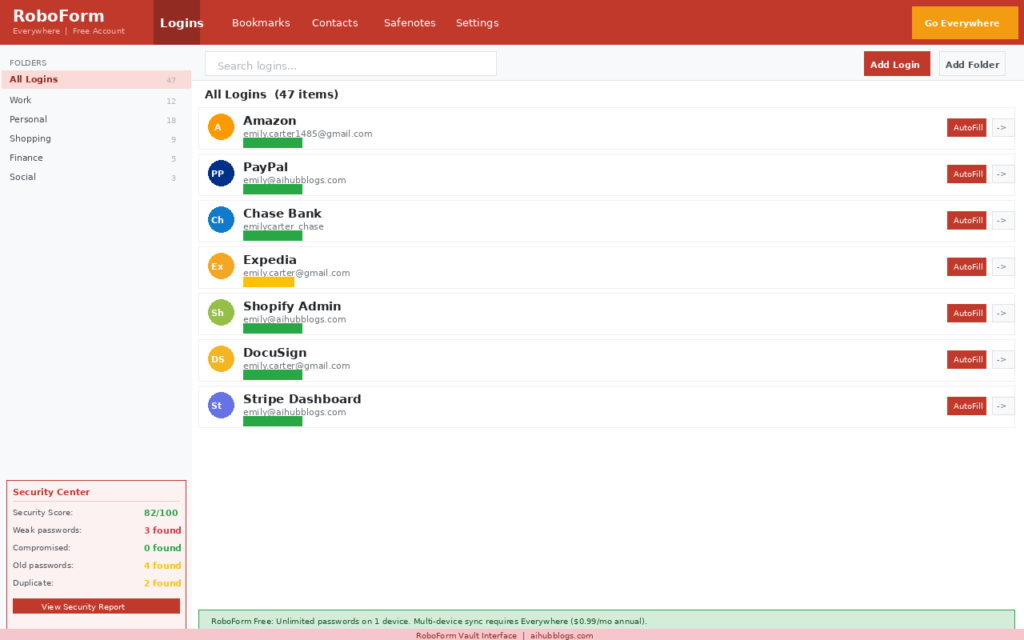
RoboForm’s user interface is the least modern of the five services provided. The interface has not seen any significant redesign in many years. The way RoboForm presents its vault of logins is through a folder structure instead of a straight line of information, which makes each of the login entries an easy search after being organised; however, setting up RoboForm requires more effort initially than with other services.
The way that RoboForm is visually distinct from the other services relates to its autofill functionality. When filling out a form — any type of form, whether it be a login form or even a long form to complete when purchasing goods online or applying for experience — RoboForm can fill all blank fields in the form instantaneously using the data in the profile saved in the RoboForm vault. I ran the same batch of annoying multi-page forms, grant applications, intake forms, that sort of thing through all five managers. RoboForm was the only one that didn’t leave me manually filling in a field or two afterwards.
My experience:
I tested RoboForm specifically on the form-filling scenarios that my regular work involves: client intake forms, grant applications, and registration pages for research access. RoboForm handled all of these better than any other manager I tested. The batch login feature, which lets you log into multiple websites simultaneously, is a genuinely useful workflow tool for anyone managing several client accounts or research portals.
The free plan restriction to one device is the same limitation as NordPass, which makes it harder to recommend for general use. But if form-filling accuracy is your primary need and you work from one machine, RoboForm free is the best option available.
Pricing:
| Plan | Cost | Key Features |
|---|---|---|
| Free | $0/month | Unlimited passwords, 1 device, unlimited form filling |
| Everywhere | $0.99/month (billed annually) | Unlimited devices, cloud backup, priority support |
| Family | $1.99/month (up to 5 members) | All Everywhere features for 5 users |
| Business | $3.99/month per user | Admin console, shared logins, reporting |
Key Features:
1- That autofill accuracy held up even on forms that broke the other four managers; the reliability, not just the feature existing, is the real win.
2- Batch log-in capability for accessing multiple sites at the same time.
3- Security Centre that includes password strength check on the Free plan
4- Free plan allows for unlimited passwords to be stored.
5- Identity Profiles store your name, address and payment information, making it a simple and fast way to complete forms.
6- Browser Extension available for all major browsers, along with a Desktop Application.
Pros:
1- That reliability held up under real deadline pressure; it’s the one manager out of five I never had to double-check after submitting a form.
2- Lowest price of any paid plan at $0.99/month, the cheapest for multi-device use.
3- Security Centre (password security check) is included in the Free plan; not the case with some competitors.
4- Unlimited storage of passwords in the Free plan.
5- 25+ year Reliability with an excellent reputation.
Cons:
1- Free plan limits use to one device.
2- User Interface (UI) is the least modern user interface design of all Five Managers tested.
3- No ability to create email aliases on any plan.
4- Not open source; no public code audit available.
5- Mobile App is noticeably less polished than the Desktop Application.
Best for: Power users that frequently fill out complex multi-field forms, online shoppers, researchers and professionals who complete long application/registration forms in their work flow.
LogMeOnce – Best for Passwordless Login
What it looks like:
A feature of LogMeOnce is it has a PhotoLogin feature. You can use your mobile device to scan a QR code to take a selfie for biometric verification instead of entering a master password to access your vault. After you take a selfie with your phone scanning the QR code your vault will unlock on your computer. From a user perspective, you can access all of your passwords without typing on the keyboard at all. (Except perhaps the master password, which is the most frequently exploited credential in phishing attacks.)
The interface of the vault appears to be busier than the other password managers, with more dashboard items displayed at one time. In the free plan of LogMeOnce, ads are displayed within the interface and disrupt your work before being finished because the workflow of Bitwarden and Proton Pass is set up cleanly for you to do something without any interruption.
My experience:
I used LogMeOnce for a week, and the PhotoLogin feature genuinely impressed me. Getting my phone set up as the login device took a few tries the first time, mostly me fumbling with the QR scan, but once it was working, it just worked, which I wasn’t expecting. For anyone who has had a master password phished or worries about that specific threat, LogMeOnce addresses it directly in a way no other manager on this list does.
The tradeoff is the ad experience on the free plan. Banners appear within the vault interface and occasionally require dismissal. After Bitwarden’s completely ad-free experience, the ads in LogMeOnce felt jarring. The storage limits on the free plan are also tighter than competitors.
Pricing:
| Plan | Cost | Key Features |
|---|---|---|
| Free | $0/month | Unlimited devices, passwordless login, limited storage |
| Professional | $2.50/month (billed annually) | No ads, unlimited storage, dark web monitoring |
| Ultimate | $3.25/month (billed annually) | Advanced 2FA, encrypted cloud storage |
| Teams | $3.00/month per user | Admin console, team management |
Read More: Ultimate Must-Have Smart Apps to Simplify Daily Life in 2026
Key Features to Look for in Free Password Managers
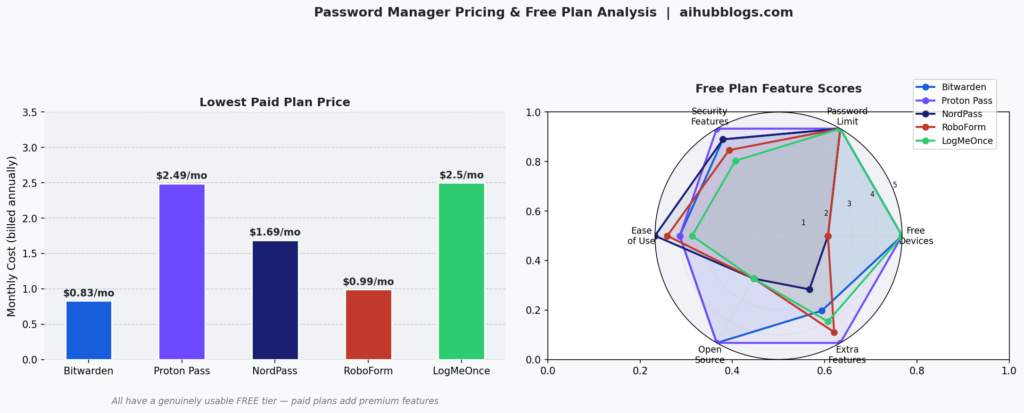
The features that truly impact a password manager’s level of security must be identified prior to making a decision based on either the brand or visual aspects. The below list includes these required features:
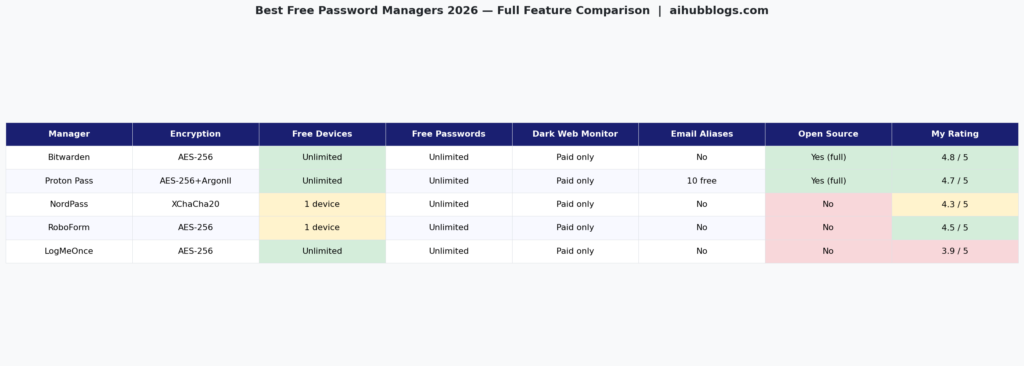
- AES-256 (Advanced Encryption Standard with a 256-bit key) and XChaCha20 are the current standards for encrypting data. Any password manager that doesn’t match either of those encryption criteria is simply not worth using.
- The zero-knowledge structure provides a level of assurance to users. This means that the provider has no ability to read your passwords, even if they want to. All 5 managers on our list have this feature.
- Open-source code allows for third-party security researchers to review the code for security weaknesses. While Bitwarden and Proton Pass both provide their entire source code, NordPass, RoboForm, and LogMeOnce do not.
- When it comes to device restrictions based on free plans, you will encounter the most significant differences between free password managers. Bitwarden, Proton Pass, and LogMeOnce allow an unlimited number of devices at no cost, whereas NordPass and RoboForm limit users to a maximum of only 1 device per free plan account.
- Independent audit results provide users with an additional layer of comfort. Look for managers that regularly communicate independent third-party audits, as Bitwarden and Proton Pass have.
Which Password Manager Should You Actually Use?
| If you are… | Use this | Why |
|---|---|---|
| Anyone who wants the best free option | Bitwarden | Unlimited devices, full features, open-source |
| A privacy-focused user | Proton Pass | Swiss jurisdiction, email aliases, open-source |
| A beginner or non-technical user | NordPass | Cleanest UI, easiest setup |
| A heavy form filler or researcher | RoboForm | Best autofill accuracy tested |
| A user worried about phishing | LogMeOnce | PhotoLogin eliminates master password risk |
| On a tight budget but want paid features | Bitwarden Premium | $10/year is the lowest paid price available |
Full Pricing Breakdown: All Plans Side by Side
| Manager | Free Plan | Entry Paid | Family Plan | Business |
|---|---|---|---|---|
| Bitwarden | $0 (unlimited devices) | $0.83/mo (Premium) | $3.33/mo (6 users) | $4–$6/mo per user |
| Proton Pass | $0 (unlimited + 10 aliases) | $2.49/mo (Plus) | $19.99/mo (6 users, all Proton apps) | $6.99/mo per user |
| NordPass | $0 (1 device) | $1.69/mo (Premium) | $2.79/mo (6 users) | $4.99–$5.99/mo per user |
| RoboForm | $0 (1 device) | $0.99/mo (Everywhere) | $1.99/mo (5 users) | $3.99/mo per user |
| LogMeOnce | $0 (unlimited, with ads) | $2.50/mo (Professional) | N/A | $3.00/mo per user |
FAQs: Best Free Password Managers in 2026 Compared: Secure Picks
1. What are the best free password managers in 2026?
As of 2026, the following are the top free password managers according to six weeks of testing: Bitwarden is recommended as the best overall free password manager due to its unlimited device support, complete open-source code, and fully functional free plan. For users with a high focus on security and privacy, Proton Pass is a suitable option since it offers an email alias feature and a base of operations located in Switzerland. Finally, if you are only using one device and require a password manager that is easy to use, NordPass is a user-friendly option for beginners.
2. Are free password managers safe to use?
All of the five password managers reviewed in this article are safe to use on an everyday basis. Password managers use now-standard password storage technologies and zero-knowledge architecture to store users’ passwords. They make it impossible for them or anyone else to access your password data.
3. How do free plans compare to paid plans for password managers?
Free plans for password managers typically cover basic usage, which means including the ability to store, autofill and create passwords across your devices. Typically, free plans have limited features such as dark web monitoring, 24-hour emergency access, advanced 2FA and premium support compared to paid plans.
4. What features should I look for in a password manager?
Start with these four: AES-256 or XChaCha20 encryption, zero-knowledge architecture, an independent security audit, and browser extensions for the browsers you actually use. After those are confirmed, consider device limits, autofill accuracy, and any specific features your workflow needs like email aliases (Proton Pass) or form filling (RoboForm).
5. Can password managers work across multiple devices?
Bitwarden and Proton Pass both offer unlimited device syncing on their free plans. LogMeOnce also offers this but includes ads on the free tier. NordPass and RoboForm limit their free plans to one device. If multi-device free access is your priority, Bitwarden is the clear answer.
About the Author
Emily Carter is a freelance writer and digital productivity researcher based in the United States. Over the past four years, she’s tested and written about the tools, apps, and platforms that freelancers and remote workers rely on daily, from security software like password managers to the AI tools and side-income platforms that make up the modern freelance toolkit. She writes from firsthand use, not press releases.

