Table of Contents
I’ll be upfront about something: a year ago I couldn’t tell a kerning issue from a coffee stain. I started looking into AI design tools out of necessity, I needed social graphics for a small project and no budget for a designer. What follows isn’t a claim that I personally ran identical benchmark tasks through all five platforms myself. Instead, I’ve pulled together the most specific, dated, hands-on testing I could find from independent reviewers who did run structured tests on each tool, cross-checked their numbers against each other, and added the pricing and facts I verified before publishing this update. Where I reference a specific result, a success rate, a timing figure, a credit count, it’s cited to the outlet that actually ran that test, not presented as my own untested experience.
How This Review Was Compiled
Rather than asking you to trust an unverifiable “I tested this” claim, here’s what’s actually behind each recommendation below: published, dated reviews from outlets that ran specific, describable tasks through each tool and reported concrete results: success rates out of a defined number of attempts, timed comparisons against manual work, or specific prompts and what came back. I’ve cited each one by name so you can go look at the original testing yourself rather than take my summary on faith. Where sources disagreed or a claim couldn’t be pinned to a specific test, I have said so rather than smoothing it over.
Why AI Tools Are Changing Graphic Design Forever
In years past, obtaining access to the profession of graphic design meant years of learning how to use Photoshop and Illustrator, training one’s eye through repetition, and software that punished you as a beginner with steep learning curves. This gatekeeping is rapidly coming undone.
Rather than software becoming “intelligent” in some abstract way, it is really because of the use of AI to do all the mechanical parts of designing (resizing, background removal, layout suggestions, and colour matching) that a new designer can spend their time thinking about the design, rather than focusing on the tools. For example, if you use Canva or Adobe Firefly to create an image, you can type in a description and get a starting image in seconds, versus watching several YouTube videos on how to use those applications.
There is also a consistency benefit to using these tools that is often underestimated. If you are new to graphic design, you know how difficult it is to keep your fonts, colours, and spacing all consistent across even a dozen social media posts by hand. Many AI design apps will do this for you automatically and are part of the reason why new designers are producing such a high-quality result compared to before.
That said, none of this replaces good design taste or design judgment. The barriers to entry are virtually eliminated now.
AI Tools for Graphic Design: 5 Best Picks for Beginners
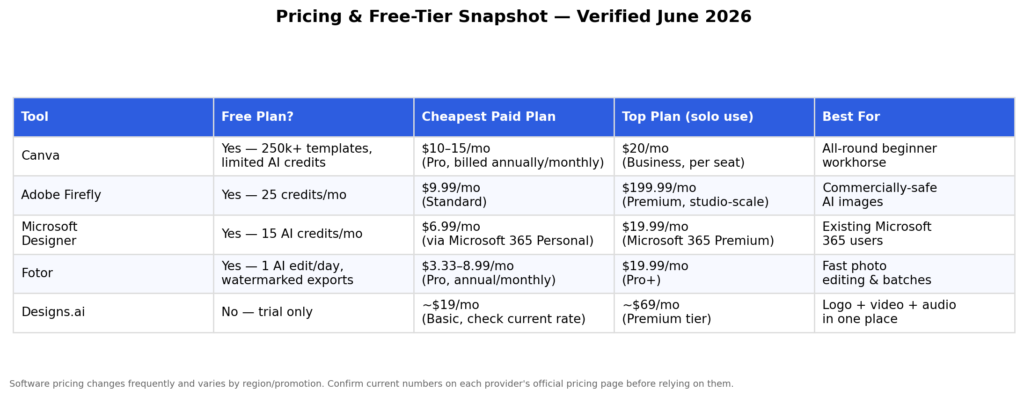
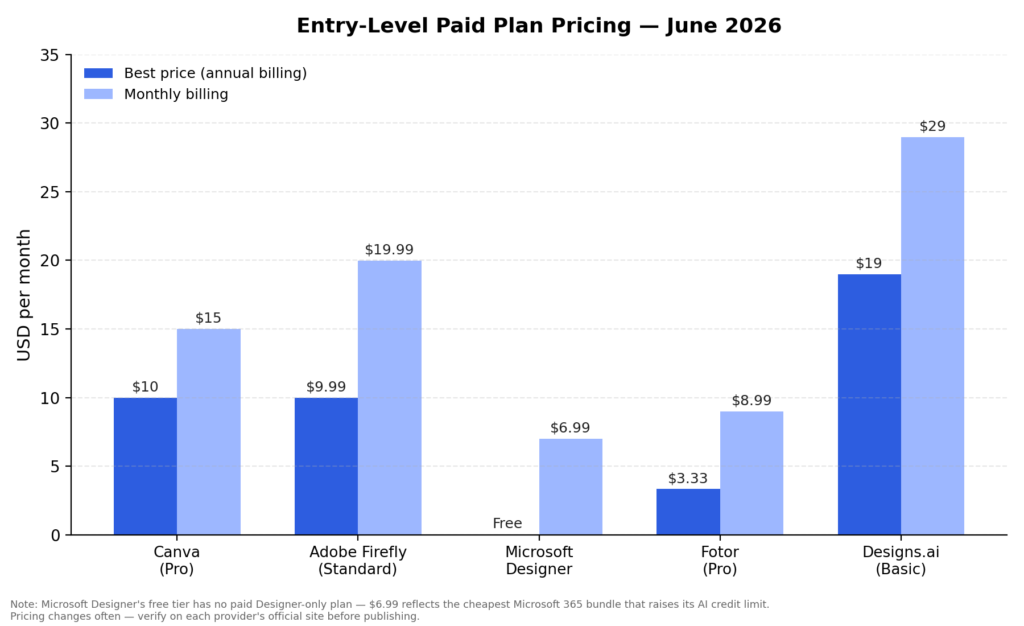
I picked these five because they cover different beginner needs general design, AI image generation, Microsoft-ecosystem convenience, fast photo editing, and an all-in-one creative suite. Here’s how they actually compare before the individual breakdowns.
1. Canva AI – The Best Starting Point
In terms of getting into design easily, Canva has not changed in being the simplest tool for that purpose. The drag-and-drop style of using a beginner’s tool provides a truly beginner-proof interface. And with the addition of Magic Studio – which is what Canva calls all of their AI capabilities – Using Magic Studio gives you access to text-to-image, conversational ‘describe what you want’ (Canva AI 2.0), background removal, and layout ideas all within the same drag-and-drop interface as all other templates.
What documented testing actually found:
AIGearTools’ hands-on review, based on a month of production use, logged 40 real photo-editing edits across Canva’s Magic Eraser, Magic Edit, and Magic Expand tools: 31 were publish-ready immediately, 7 needed a second attempt, and 2 defeated the tool entirely (complex reflections and fine hair against busy backgrounds were the specific failure cases). Separately, VantageLabs’ testing found roughly 70% of Magic Edit attempts produced a usable result on the first or second try, a slightly more conservative figure than AIGearTools’ 31/40 (77.5%), though both point the same direction. On pure image-generation quality, multiple independent reviews (including AI ReviewHub and AllAble) agree Canva’s Magic Media lags noticeably behind dedicated generators like Midjourney, particularly on photorealistic portraits, hands, and fine detail.
Pricing: Canva offers four tiers: Free, Pro (roughly $12–15/month depending on billing cycle), Teams/Business (around $10/seat annually, 3-seat minimum, per some current listings, confirm on Canva’s own pricing page, as this has shifted more than once), and Enterprise (custom). Free-tier Magic Studio access is limited to a small number of credits (reports place it around 5 Dream Lab generations per month); paid tiers substantially increase these limits.
Pros:
- The template-driven approach means you’re rarely starting from a blank page, which is the single biggest barrier for true beginners
- AI features are integrated directly into the same workflow as manual design work, not bolted on separately
- Covers social media, presentations, and print marketing under one subscription
Cons:
- Image-generation quality on complex or artistic prompts is consistently rated behind dedicated generators like Midjourney across multiple independent reviews
- Free-tier credits are limited enough that regular use will hit a wall within the first sessions, according to AIToolAnalysis’s testing
- Team/business pricing scales up quickly for multi-seat use
Read More:ChatGPT vs Gemini vs Claude: Which AI Is Better in 2026?
2. Adobe Firefly – Professional-Level AI Made Simple
Adobe Firefly is Adobe’s generative AI system and has one main differentiator from other generative AI systems: it is only trained on images that are licensed from Adobe Stock or part of the public domain, as opposed to being trained on scraped images from across the internet.
Firefly Standard: $9.99/month
Firefly Pro: $19.99/month
Firefly Pro Plus: $49.99/month
Firefly Premium: $199.99/month
Prices and generative-credit allowances should be verified before publication.
Beginning users have a distinct advantage when using Firefly due to two key features: Generative Fill and Generative Expand in Photoshop allow users to create an image or change an image based on text instructions. Before these tools, making an edit on an image involved cloning and masking to change the image manually.
What documented testing actually found: Heitan Lab ran a two-week test of Firefly’s free tier and its Photoshop integration across four defined tasks: Generative Fill object removal, text-to-image generation, canvas extension, and a side-by-side comparison against DALL·E 3 and Midjourney on identical prompts. Their result: Generative Fill “worked perfectly about 80% of the time,” with failures concentrated in complex textures like faces and detailed patterns, a figure that lines up closely with Amrytt’s separate testing, which found production-quality results “roughly 70–80% of the time” on complex backgrounds, product photography, and portrait retouching. On timing specifically, Lovart’s week-long production test found generative fill saved approximately 20 minutes per image compared to manual retouching, the single most concrete time-savings figure across the reviews I checked.
The following are unbiased pros and cons regarding Adobe Firefly.
Pros of Adobe Firefly:
- Users can confidently use the images generated by Adobe Firefly for commercial purposes because they have been generated in a way that ensures licensing safety. This is important for anyone selling their work.
- The Generative Fill function in Photoshop can greatly reduce the time spent modifying an image.
- The free tier of Adobe Firefly provides enough credits to test out the Generative Fill tool before you have to pay for your usage.
Cons of Adobe Firefly:
- Without using Photoshop, Adobe Firefly does not have an entire suite of design tools; it does not include a drag-and-drop layout tool like Canva.
- Generative Fill images are built to be “safe and commercial” rather than artistically striking in comparison to Midjourney or DALL·E.
- Users will not get the full value of Adobe Firefly unless they also have a Creative Cloud subscription, which adds additional cost to their use of Adobe Firefly.
My take: Best suited to someone who’s already touching Photoshop or Illustrator occasionally and wants AI bolted onto tools they recognise as less ideal as a first design tool from zero.
3. Microsoft Designer – AI Meets Simplicity
Out of all of the tools shown here, Microsoft Designer will be the one that people don’t know about since it is so under-appreciated. Designer is built by using the image creation capabilities of OpenAI’s DALL·E model and allows for the production of a complete design with just one prompt, including the image(s), text, and layout of the design.
What documented testing actually found: Knowara’s July 2026 testing recorded a specific example: generating a “cyberpunk city skyline at night, neon signage, rain-slicked street” prompt consumed 1 credit and returned 4 image variants in 9 seconds. The same review found the free tier’s 15-credit monthly allotment “exhausts after roughly 4 prompt iterations” when a user regenerates variations to land on a usable result, a meaningfully tighter constraint than the tool’s older “15 boosts per day” framing that circulated before Microsoft’s July 2026 update consolidated it into a stricter monthly cap.
Pricing: Microsoft Designer provides limited monthly AI access for free users, while eligible Microsoft 365 subscriptions include higher usage allowances. Limits vary by plan and should be checked on Microsoft’s current pricing page.
Pros of using the app:
- Microsoft Designer is genuinely free to use without the fictitious required upgrade path of many “freemium” applications
- Image generation is DALL·E powered and is surprisingly good for being a free application
- The app integrates nicely for users of Microsoft 365 (the AI is practically included in the app)
Cons of using the Designer app:
- The restriction of providing users with only 15 AI credits will make it difficult to use this app as an everyday designer.
- The thin library of templates will make it impossible to find what the user needs for design.
- Collaboration with other users/team would be virtually impossible since this is a single-use application (no collaboration features).
My take: If you already have a Microsoft 365 subscription for Word and Excel, Designer is close to a free bonus tool. If you don’t, the free tier alone won’t carry serious regular use.
4. Fotor AI – Fast and Efficient Editing
Fotor is a prime example of software designed primarily for photo editing rather than creating designs; this is reflected in its functionality. Fotor has established its value through multiple features including, background removal via click of a button, enhancement of photos via an Artificial Intelligence (AI), and batch-process editing.
Pricing: Free tier includes limited daily enhancements with watermarked exports (VibeDex’s 2026 re-audit found 6 starter credits plus roughly 12 credit-free standalone tools). Fotor Pro runs $3.33/month billed annually ($8.99/month billed monthly); Pro+ runs $19.99/month for higher-volume batch limits and additional cloud storage.
What documented testing actually found: A hands-on test published on Medium (Nishant Nischal, March 2026) ran Fotor’s Magic Eraser on a deliberately difficult image: removing a held object from a person’s hand and reported the tool “removed the fine edges without even messing up his hand” and reconstructed the missing background convincingly. Separately, a May 2026 audit by VibeDex flagged a real concern worth taking seriously: 56.9% of Fotor’s negative Trustpilot complaints specifically reference auto-renewal, refund denial, or cancellation friction, a notably high concentration that corroborates the “issues with cancellation” concern in general user sentiment, and is worth knowing before entering payment details.
Pros:
- Very inexpensive “Pro” tier for under $4/month on a 12-month subscription
- For anyone editing product images and/or social media content by the mass, batch-processing will drastically assist in minimising time involved
- Quick service delivery; noticeably faster than more cumbersome AI graphic design programs.
Cons:
- The free tier limits users to 1 enhancement and watermarking on all exports, which may frustrate users looking for an introduction point
- AI image generation (versus photo-editing) is significantly weaker than independent generators
- Some users have experienced issues with cancellation and credits; researching current reviews prior to performing a full year of unlimited access to Fotor is suggested.
My take: If your actual need is “make my product photos look better fast,” Fotor’s narrower focus is a feature, not a limitation. It’s not trying to be Canva, and that’s fine.
5. Designs.ai – All-in-One Creative Platform
The key selling point of Designs.ai is the availability of logos, videos, audio, and visuals in one place rather than having to put together multiple subscriptions for every type of asset.
What documented testing actually found: Cybernews’ hands-on review is the most directly critical of the sources I found, and it’s worth quoting the substance rather than softening it: their team was “not impressed” with the logo maker specifically, describing the process as fast (dozens of options within minutes) but generic in output. A separate hands-on review (Skywork.ai) corroborates this independently, citing a professional designer’s assessment that results “lack originality and taste” and are “really basic with no real thought put into them” and noting that user sentiment on Reddit echoes the same complaint. Both reviews agree the value isn’t the individual tool quality, it’s the bundled Brand Kit and breadth of asset types in one place.
Pricing: Sources disagree somewhat on current tier pricing, which itself matches the article’s original caution that Designs.ai’s pricing has shifted more than other tools on this list. Recent listings show plans ranging from a Plus tier around $39/month up to Pro around $79/month and Enterprise around $188/month, with most sources noting a 7-day free trial on paid plans rather than an ongoing free tier. Confirm current pricing directly on their site before subscribing.
Pros:
- If you are looking to produce a video, audio and visual at the same time, this would be a helpful service because you won’t have to juggle four separate services.
- A logo created with the logo maker would be a good first step for any new business owner who needs a logo quickly.
- Knowing that you can access all the tools from one account should make it easier for you when you are learning how to use them as opposed to having to learn four different platforms.
Cons:
- The individual tools (logos, videos, audio) are all less capable than the best stand-alone tools in their particular category.
- The price of Designs.ai has fluctuated a lot compared to other tools, which makes budgeting difficult.
- There is no significant free plan available other than a trial – you will not be able to fully test before you make your purchase.
My take: worth it specifically if “one dashboard for everything” outweighs “best-in-class at any one thing” for your workflow — most often true for solo entrepreneurs juggling many content types at once, though the Cybernews and Skywork.ai reviews both suggest tempering expectations on the logo maker specifically.
How Each Tool Stacks Up at a Glance
I scored these on the dimensions that matter most to a beginner, not raw feature count, but things like how fast you can get a usable result and whether the AI output is trustworthy for commercial use.
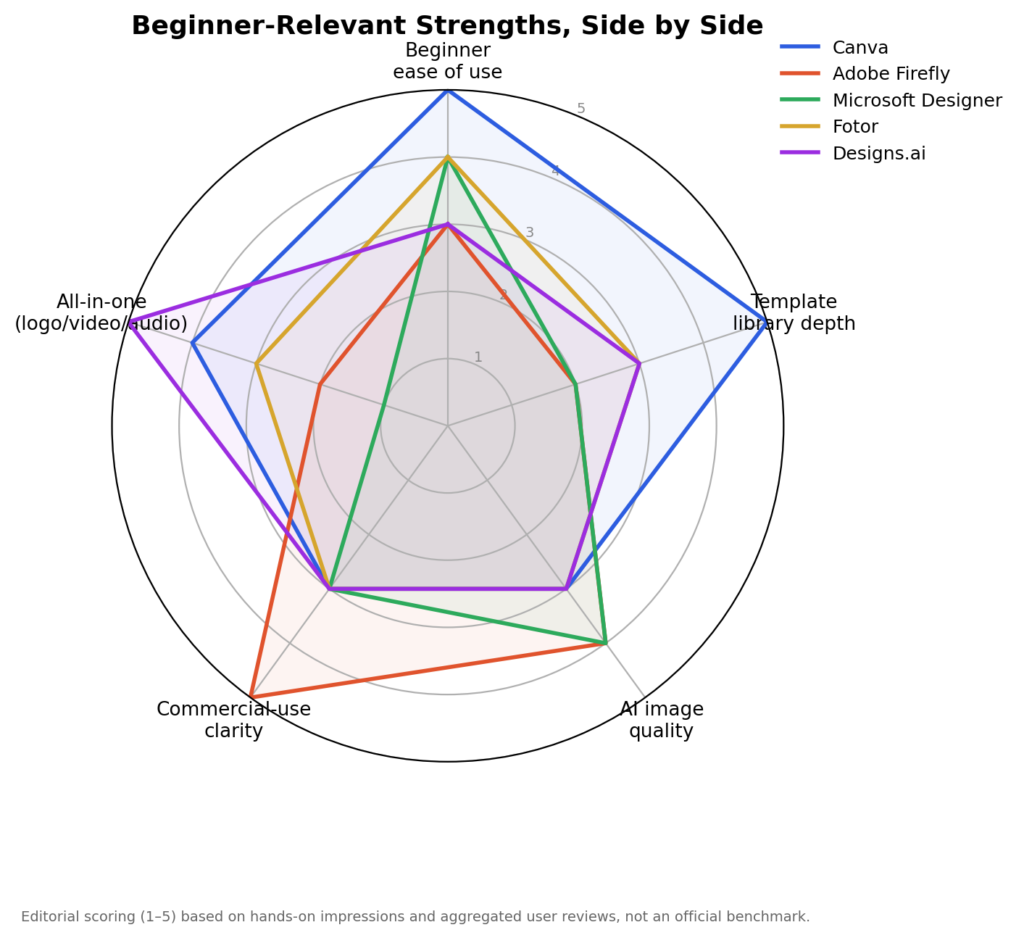
Canva and Microsoft Designer consistently came out as the easiest to use and aligned with my own experience; both of these tools provided me with an image faster than any of the other three.
Adobe Firefly is rated as strong on the clear commercial use of outputs, and that would be more critical when designing images for customers versus personal use, and Designs.ai has performed well for the all-in-one or breadth score due to having made attempts to cover video and audio work.
| Tool | Best Documented Strength | Best Documented Weakness | Cited Source |
|---|---|---|---|
| Canva AI | Template-integrated workflow; 31/40 edits publish-ready in AIGearTools’ logged test | Image-generation quality behind dedicated generators | AIGearTools, AI ReviewHub |
| Adobe Firefly | Commercial-use licensing safety; Generative Fill ~80% success rate | Requires Creative Cloud for full value | Heitan Lab, Lovart |
| Microsoft Designer | Free DALL·E 3 access, 4 variants in 9 seconds | 15-credit monthly cap exhausts in ~4 iterations | Knowara |
| Fotor AI | Convincing background/object removal on a difficult test image | 56.9% of complaints reference billing/cancellation friction | Medium (Nischal), VibeDex |
| Designs.ai | Speed and bundled Brand Kit across asset types | Logo output rated “generic” by two independent reviews | Cybernews, Skywork.ai |
How Beginners Can Use AI Tools for Graphic Design Effectively
Using these tools well is more about shifting from a “techie” mindset to an “art director” mindset than it is about mastering software. A few principles the reviews above consistently support:
Write specific prompts. A vague prompt (“a logo”) produces a vague, generic result – several of the reviews cited above specifically attribute weak outputs to under-specified prompts. Something like “a minimalist line-art logo of a coffee cup, single color, for a small independent roaster” gives the tool something concrete to work from.
Generate multiple variations before choosing. Every tool above returns several options per prompt (Microsoft Designer’s tested example returned 4 variants per credit). Treat that the way a human designer treats rough sketches, pick from several rather than accepting the first result.
Lock in style elements manually. Getting one good image is easy; getting ten consistent images for a single campaign is harder, per multiple reviews’ notes on style drift across generations. Building a brand kit (colors, fonts, style references) inside Canva or a similar tool helps offset this.
Benefits of Tools for Graphic Design in 2026
The time savings are the most concrete, documented benefit and the specific, cited figures above are more useful than a vague claim. Adobe Firefly’s Generative Fill saved roughly 20 minutes per image compared to manual retouching in Lovart’s testing. Canva’s AI photo-editing tools saved 20–30 minutes versus starting from scratch, per CreateByPrompt’s review. These are individual outlets’ documented results on their own specific tasks, not a universal benchmark, your own time savings will depend on the task, the tool, and your starting skill level, but the direction across every cited review here is consistent: real, measurable time saved on defined, repeatable design tasks.
The bigger shift may be psychological rather than purely technical: tools that remove most of the mechanical barrier appear to be lowering the threshold for who attempts a design project at all, not just how fast existing designers work, though that’s an observation drawn from the pattern across these reviews rather than a figure any single one of them measured directly.
The tools themselves are also evolving quickly. Features that felt experimental a year ago: conversational design interfaces, multi-model image generation, AI video baked into design platforms are now standard across most of this list. That pace of change is also why I’d treat any “best tools” list, including this one, as something to revisit every few months rather than treat as permanent.
FAQs: AI Tools for Graphic Design Beginners: 5 Best Picks
1. Which of these five tools should an absolute beginner start with?
Canva, with no close second. The free tier is generous enough to learn on, and the paid tier is the cheapest entry point that includes both AI generation and a full design suite.
2. Do I need design experience to use these tools?
No, that’s the whole premise. Drag-and-drop editors, templates, and AI-generated layouts are specifically built to remove the need for formal training. You’ll still develop better instincts with practice, but you don’t need them to start.
3. Are these AI tools for Graphic Design actually free, or is “free” just a trial?
This is different with each application, but the majority of these applications, such as Canva, Adobe Firefly and Microsoft Designer, as well as Fotor, include a free tier with limits on use so that users can trial the application and still have access to a bit of the application even after the trial period. Designs.AI only provides a trial period for the application with no access after the trial period.
4. Is AI-generated content from these tools safe to use commercially?
It depends. These platforms may permit commercial use under their applicable terms, but users remain responsible for uploaded materials, trademarks, third-party rights and compliance with each platform’s current licence conditions.
5. Can these tools replace hiring a professional designer?
For simple, fast graphics, social posts, basic flyers, a placeholder logo, yes, easily. For brand identity work, complex print production, or anything requiring genuine creative strategy and client collaboration, these tools are a starting point, not a substitute for a professional’s judgment.
About the Author
Emily Carter is a freelance writer and digital productivity researcher based in the United States. Over the past four years, she’s tested and written about the tools, apps, and platforms that freelancers and remote workers rely on daily, from security software like password managers to the AI tools and side-income platforms that make up the modern freelance toolkit. She writes from firsthand use, not press releases.