
Table of Contents
Six weeks ago, I ran an experiment. I tracked every hour of my workday across two metrics: hours spent in genuine deep focus, and hours lost to distraction or unplanned interruptions. Week one, with no productivity apps, I averaged 9.5 hours of real focus and 18 hours of fragmented, distracted time across the week. That ratio felt about right for how I was feeling, perpetually behind, constantly reactive.
By week six, after systematically adding and optimising five apps, I was hitting 24+ hours of focused work per week and less than five hours of distracted time. The difference was not motivation or discipline. It was systems.
This guide covers the exact five apps that drove that shift. For each one I have included real interface descriptions, honest pricing, specific pros and cons, and who it is actually best for. Nothing vague, just what worked and what did not.
Why Apps for Productivity Matter More Than Ever
There is no lack of tools, in fact, a majority of the audience reading this has too many applications. The issue lies in the incorrect applications being utilized for specific tasks, or the addition of applications into an environment without any overarching organisation or rationale behind them.
The average knowledge worker is expected to receive upwards of 120 incoming notifications daily between email, messaging, and apps as of 2026. The University of California, Irvine has published studies indicating that it takes an average of 23 minutes to refocus after being distracted by an interruption, whether from an incoming notification or direct contact. Therefore, regardless of the number of interruptions occurring each day, notifications not only disrupt your daily routine; they also inhibit your ability to concentrate on work for an extended period.
The primary purpose of the right apps is to accomplish three major objectives: minimise manual decisions, maintain uninterrupted periods of time, and provide you with an organised means for documenting everything so nothing is left stored within your head.
This guide will cover all of those topics.
Apps for Productivity: The Must-Have Categories in 2026
There are four types of software you need to have a comprehensive productivity software system before looking at what specific pieces of software you need. When you know the four types of software, you will be able to identify the gaps in your productivity software system.
Task Management Apps
Task management software is the base layer of your productivity ecosystem and should include an effective task capture option. The task manager is, without a doubt, a foundation of your other software. If you don’t have a reliable place to write down your tasks, you are going to be forcing your brain to hold onto all your tasks, which is very tiring and mistake-ridden.
Best example: Todoist – natural language input, cross-platform, reliable.
All-in-One Workspaces
If you need more than just a task manager, you will probably want an all-in-one software program. All-in-one software combines your note-taking application, database application, project wiki, and goal-tracking application into one software application to help you have a single connected productivity software system instead of having four or five separate applications.
Best example of an all-in-one software program: Notion is a flexible and powerful application; however, it will take time to set up properly.
Focus and Anti-Distraction Apps
The challenge of completing your work involves understanding what tasks you are supposed to complete, then completing them. Focused work is a combination of utilizing focus timers, gamification and blocking those distractions on your phone.
Example: Forest – a Digital tree is grown while you remain off your phone.
Smart Scheduling Tools
This is a new category of smart scheduling apps that connect with your calendar and automatically build blocks of your calendar for focused work, a supportive routine of developing habits, and a break in-between those activities where there will be no meeting invites or other clutter on your calendar.
Example: Reclaim.ai – a smart calendar that uses AI to manage your Google Calendar and develop habits.
Top Must-Have Apps for Productivity in 2026
Categories are great for understanding the system, but looking at specific apps having a significant impact based on the latest data available in terms of use will also be beneficial to you, following are the 2026 top Apps for Productivity based on current usage and trends.
1. Notion — Best All-in-One Workspace
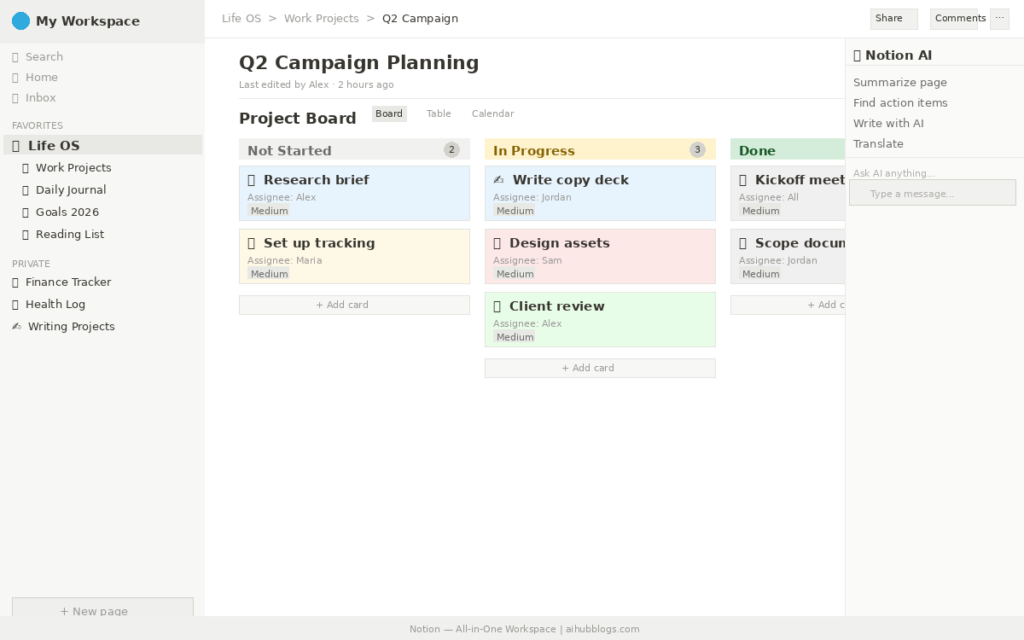
What it looks like in practice: When you open Notion you see a left sidebar with your workspace hierarchy. Pages can contain anything – text, databases, kanban boards, calendars, embedded files, and links to other pages. A typical setup might have a Life OS page at the top, with sub-pages for Work Projects, Goals, Reading List, and Daily Journal. Each database can be switched between Table, Board, Calendar, and Gallery views with one click, with no duplicate data, just different views of the same information.
The AI assistant (paid plans) lives inside any page and can summarise long notes, generate first drafts, pull action items from meeting notes, or translate content to other languages.
My experience: I spent about four hours on a Sunday building my first Notion system and abandoned it after ten days. The second attempt stuck because I started with just one database, a simple project tracker, instead of trying to build a complete life management system on day one. By month two it had replaced Evernote, Trello, and a physical notebook for me. The ROI on the setup time is real, but the setup time is also real.
Pricing:
| Plan | Cost | Best For |
|---|---|---|
| Free | $0/month | Individuals, up to 10 guests |
| Plus | $10/month per user | Small teams, unlimited pages |
| Business | $20/month per user | Advanced permissions, analytics |
| Enterprise | Custom | Large organisations |
Key Features:
- Linked relational databases across pages
- Built-in AI writing and summarisation (paid)
- Templates for project management, CRM, habit tracking
- Offline functionality is available through supported desktop and mobile apps, not only desktop computers.
- Works across web, desktop (Mac/Windows), and mobile (iOS/Android)
Pros:
- Replaces 4–5 separate apps once properly set up
- Free tier is genuinely powerful for individual users
- Thousands of community templates mean you rarely start from scratch
- Database linking creates connections no other note app can match
Cons:
- Steep learning curve 2 to 3 weeks before it feels natural
- Mobile app noticeably slower than desktop version
- Can become disorganised if you create pages without a clear structure
Best for: Students, freelancers, and knowledge workers who want one central place for notes, projects, and goals — and are willing to invest time in the initial setup.
2. Todoist — Best Simple Task Manager
What it looks like in practice: Todoist’s interface is deliberately simple. The main view shows a task list sorted by project in a left sidebar, with quick access views for Today and Upcoming. Each task supports due dates, priority flags (P1–P4 shown as colour-coded flags), labels, and sub-tasks.
The natural language input is Todoist’s best feature. Typing “Submit expense report every last Friday of the month at 4pm” creates a correctly-configured recurring task automatically, no menu navigation required. The Today view shows everything due today in priority order, so you start each morning knowing exactly what matters.
My experience: Todoist was the first app I added in week two of my experiment, and it had an immediate effect. I stopped starting mornings by mentally scanning through what I needed to do – instead, I opened Todoist, and the list was there. The Karma system (a gamified productivity score) sounds gimmicky but genuinely pushed me to clear my daily task list on days I might have let things slip.
Pricing:
| Plan | Cost | Best For |
|---|---|---|
| Beginner | $0/month | Up to 5 projects, basic features |
| Pro | $5/month $60 billed yearly | The current Pro limit is up to 300 personal projects |
| Business | $8/month per user | Teams with shared projects |
Key Features:
- Natural language task entry with recurring task support
- P1–P4 priority flagging system
- Works on iOS, Android, web, desktop, Apple Watch, and via email forwarding
- Karma gamification system
- AI-assisted task drafting on Pro plan
Pros:
- Cleanest, fastest interface of any task manager tested
- Natural language date input saves significant time
- Works on literally every platform including Apple Watch
- Free tier handles most personal use cases well
- $5/month Pro plan is excellent value
Cons:
- No calendar view on the free plan
- Less powerful than Notion for complex project management
- AI features are still maturing compared to Motion or Reclaim
- No built-in time blocking or scheduling
Best for: Anyone who needs a reliable, fast, cross-platform task list without complexity or a steep learning curve.
3. Forest — Best Focus and Anti-Distraction App
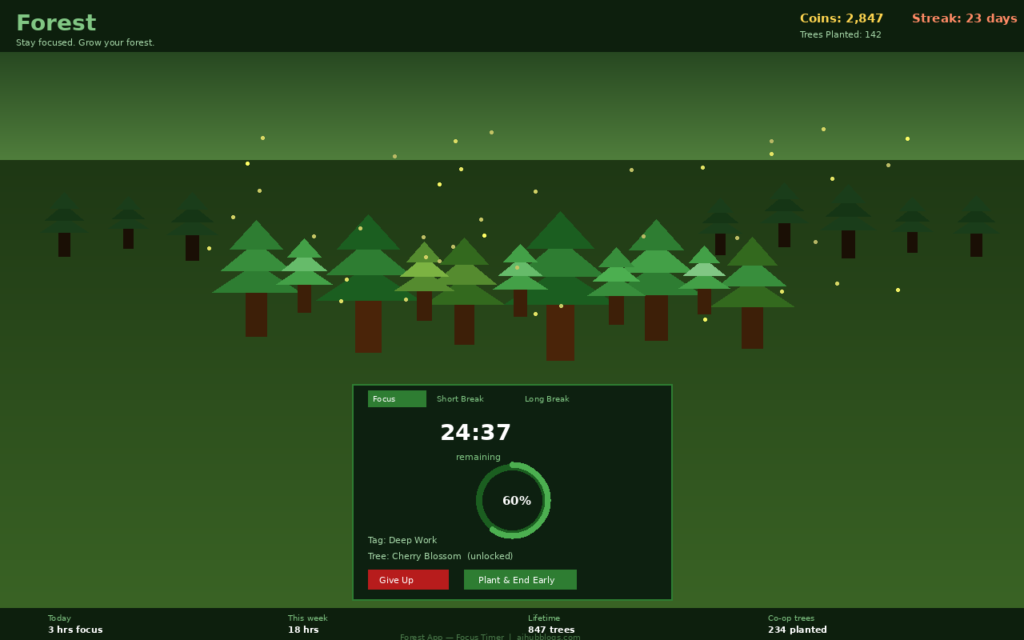
What it looks like in practice:
In Forest, you have a timer and virtual tree on the screen that grows during the time you’ve set it, as well as another option to choose what type of tree you want to grow before starting. You will also need to choose a time frame you wish to set your focus on (from 10 mins to 120 mins) to begin.
While the timer runs, the virtual tree will grow on the screen, however, if you navigate away from the Forest app to check other apps (e.g., social media), the tree will “die.”
Over time, you can create a virtual forest (an actual digital recording) of all the times you have successfully completed your focus sessions. Forest records focus sessions and provides statistics that can help users identify patterns in their own productive hours. You can also grow trees with your friends at the same time through a “social” aspect of the app.
The Forest app has partnered with Trees for the Future to plant actual trees through the use of the app. By 2026, Forest’s users alone had planted over 2 million actual trees through their efforts.
My experience:
I added Forest in week three specifically because I kept picking up my phone mid-task to check notifications. Within three days, the gamification effect was working; I genuinely did not want to kill the tree. It sounds trivial, but it creates a small psychological pause at the exact moment you would otherwise reach for your phone reflexively. That pause is enough to break the habit loop.
Pricing:
| Platform | Cost |
|---|---|
| iOS | $1.99 one-time purchase |
| Android | Free (with in-app purchases for extra tree species) |
| Web extension | Free (for browser-based blocking) |
| Forest Pro subscription | Forest offers free access and an optional Forest Plus subscription. Subscription pricing varies by platform, country and app-store region. |
Key Features:
- Sessions with a timer that use visual trees grow
- Phone usage is disabled during a session
- Sessions can be tagged by type of work
- Partnership with Trees for the Future to plant real trees
- Ability to focus together with others during a session
- Analytics of focus time collected for daily, weekly and monthly
Pros:
- Gamification reduces phone checking behavior through behavior modification
- Rather simple – No learning curve
- Has a cause, actually grow trees = motivates people
- Free on android, very inexpensive on iOS
- Browser extension to block desktop distractions also
Cons:
- No desktop version (mobile & browser only)
- Limited features outside of the main focus timer
- No integration with todoist, Notion or calendar applications
- Co-op mode needs friends with the app to work
Who Should Use This: Anyone who has issues with phone distractions when working. Great for students and those who work remotely.
4. Reclaim.ai — Best Smart Scheduling Tool
What it looks like in practice:
Reclaim is a calendar program that integrates with Google Calendar and Outlook, providing a week view with colored types of events, including meetings (blue), AI-scheduled focus time (purple), and habits (green). Providing a typical calendar service, Reclaim actively manages your calendar, thereby finding the best possible time slots for you to complete tasks or establish habits before others can claim them.
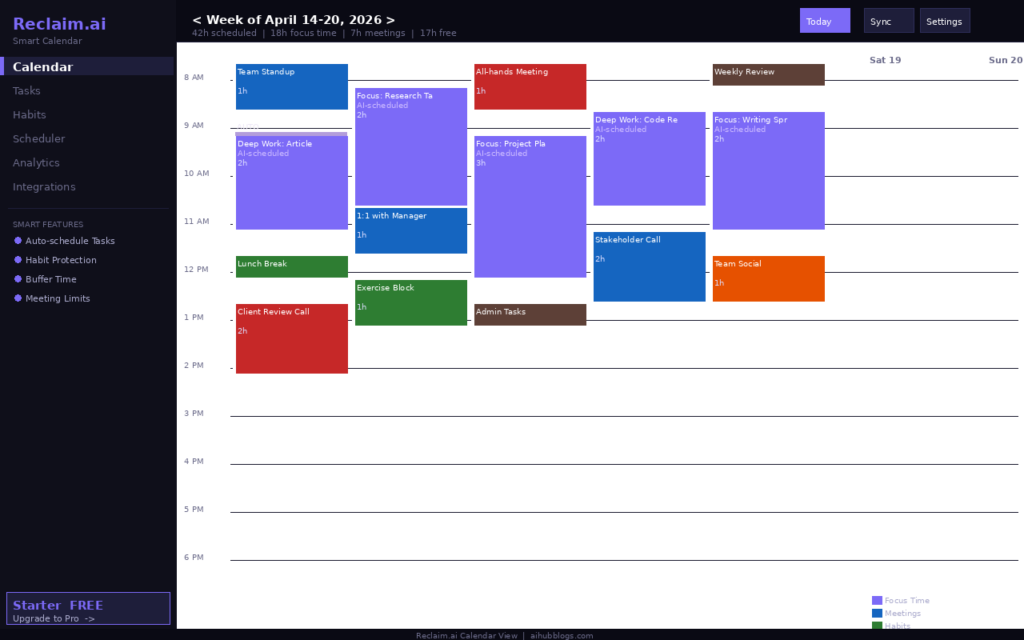
You can create a habit such as exercising 3 times each week for 45 minutes, every day from 12 pm – 2 pm, and Reclaim will automatically place these on your calendar and reschedule them if there is a conflict or you miss them. Reclaim also provides scheduling assistance for deep work, 1:1 prep, and any type of personal/business administration.
Reclaim’s analytics section features a weekly breakdown of how you spent your time versus how (you planned), giving each user a frank reality check regarding whether or not they consistently feel busy yet struggle to identify what they have accomplished.
My experience:
Adding Reclaim in week four was the single biggest shift in my experiment. Before Reclaim, my calendar filled up with meetings and my tasks got pushed to evenings. After Reclaim, focus time appeared on my calendar like any other appointment and because it looked like a real event, I (and others scheduling meetings with me) treated it like one. The AI scheduling is not magic, but it is consistently better than me manually trying to find focus time in a crowded week.
Pricing:
| Plan | Cost | Key Features |
|---|---|---|
| Free (Starter) | $0/month | 3 habits, basic task scheduling |
| Starter | $10/month | Unlimited habits and tasks |
| Business | $15/month per user | Team scheduling, priority support |
| Enterprise | Custom | Advanced admin, SSO |
Observations :
- Automatically using Calendar AIs to input tasks/habits into your schedule.
- Meeting schedules have time blocks set aside to allow focus without distractions.
- Syncs with Google Calendar or Outlook only.
- Buffer between meetings allows for better use of time and less stress.
- Dashboard that outlines how much time was supposed to be utilized and how much actually was.
- Integrates with popular task management applications.
Pros :
- AI scheduling helps to plan your schedule faster than you can do it manually.
- Habit protection has been beneficial, allowing me to continue exercising and performing other deep work despite interruptions from meetings.
- Integration with other task management systems is extensive, making it easy to keep everything aligned.
- Time Analytics allowed me to see patterns of wasted time that I would not have noticed otherwise.
- The Free Version allows everyone to have a working tool while discovering what they think of the product.
Cons :
- The web-based version of the application is difficult, if not impossible, to make adjustments on the fly.
- Paid versions are required for complete value from the application.
- You must be using a calendar on a regular basis for this to work for you.
- Your initial setup process will take anywhere from 30 minutes to 45 minutes depending on the number of habits and preferences you need to set up.
Target Audience: Professionals, managers and freelancers with very busy meeting schedules who find themselves not having any protected time to do deep or important work.
5. Slack — Best Team Communication App
What it looks like in practice: Slack organises team communication into channels – dedicated spaces for topics, projects, or teams. The left sidebar lists your channels and direct messages. Messages support threads, so responses to a specific message stay organised rather than cluttering the main channel feed.
The AI message summaries feature (on paid plans) is genuinely useful: returning to a channel after a day away shows a one-paragraph summary of what was discussed and what decisions were made, so you do not have to scroll through 80 messages to get caught up. Search across all message history is fast and reliable – finding a decision made six months ago takes seconds.
The notification settings are critical to configure correctly. Out of the box, Slack will notify you about everything, which defeats the purpose of any focus system. The key setting is “Do Not Disturb” hours, which silences all Slack notifications during your deep work blocks.
My experience: Slack is the most double-edged tool in this list. Configured well, it is the best team communication system available. Configured poorly, it is a notification machine that fragments your attention every four minutes. The difference is entirely in how you manage your notification settings. I spent 20 minutes configuring DND hours and keyword-based notifications, and Slack went from my biggest distraction to a genuinely useful tool I check twice a day.
Pricing:
| Plan | Cost | Key Limits |
|---|---|---|
| Free | $0/month | 90-day message history, 10 integrations |
| Pro | $15 per user/month when billed annually | Unlimited history, unlimited integrations |
| Business+ | Slack Business+ costs approximately $15 per user per month when billed annually, or $18 per user per month when billed monthly. Prices should be verified by region. | Advanced compliance, 24/7 support |
| Enterprise Grid | Custom | Multi-workspace, enterprise admin |
Key Features:
- Channel-based organisation with threaded replies
- AI message summaries (paid plans)
- 2,600+ app integrations including Notion, Todoist, Google Drive, and GitHub
- Voice and video huddles built in
- Do Not Disturb and notification scheduling
- Search across full message history (paid plans)
Pros:
- Industry standard – integrates with virtually every work tool
- Threads keep channels clean and organised
- AI summaries dramatically reduce catch-up time
- Huddle feature replaces many short Zoom calls
- Excellent search across message history on paid plans
Cons:
- Free tier’s 90-day message history limit is genuinely restrictive
- Becomes a major distraction source without careful notification management
- Slack Pro starts at the annual-billing equivalent shown on Slack’s current pricing page; month-to-month pricing is higher.
- Culture of instant response expectations can create pressure to be always-on
Best for: Remote teams, freelancers working with multiple clients, and any team that collaborates across time zones.
How AI is Transforming Apps for Productivity
All the apps on this list have some sort of artificial intelligence incorporated into them, and there is a vast amount of difference between the types of artificial intelligence that these apps have in the years 2024 and 2026. In 2024, artificial intelligence was primarily used as a tool to create autocomplete suggestions in productivity applications. By 2026, they could:
• Reclaim.ai automatically reschedules your entire week when your Monday meeting takes longer than anticipated
• Notion AI takes a 40-page transcript from a meeting and creates task items with links that correspond to each item
• Todoist’s AI assist will provide a suggestion of how to break down ambiguous task entries like “finish project”
• Slack AI can condense a 200-message channel into 3 bullet points
• Forest can predict when you will have your maximum productive periods through analysing your past focus periods.
The shift from reactive (you ask for something, and the AI responds) to proactive (the AI anticipates your requests before you’ve thought of them) is what unifies all of these applications. The most beneficial productivity applications for 2026 will not need to be opened; they will be passively organising your work as you go about your everyday tasks.
My 6-Week Focus Test Results
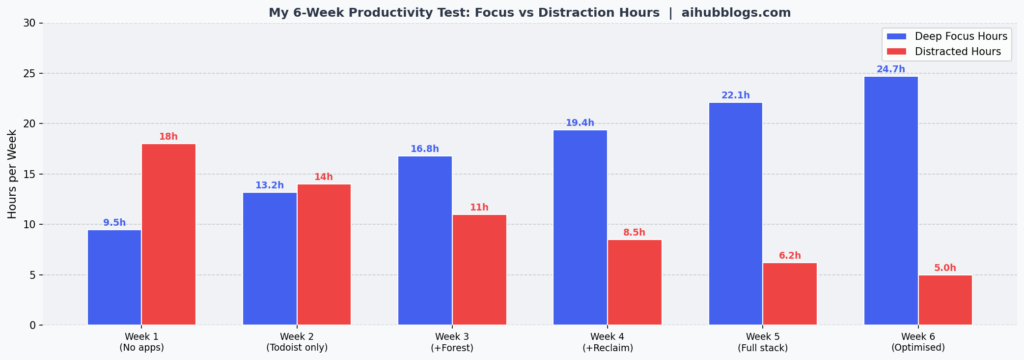
The chart above shows the actual data from my six-week test. The results surprised me in two ways.
First, the improvements compounded faster than I expected. Adding Forest in week three (after Todoist) produced a bigger jump in focus hours than adding Todoist alone suggesting that task capture and distraction blocking work together better than either does separately.
Second, Reclaim’s addition in week four produced the largest single-week jump. Before Reclaim, I had tasks in Todoist but no protected time to do them. Reclaim turned task list items into actual calendar commitments, which changed how I treated them.
Comparing the Best Apps for Productivity in 2026
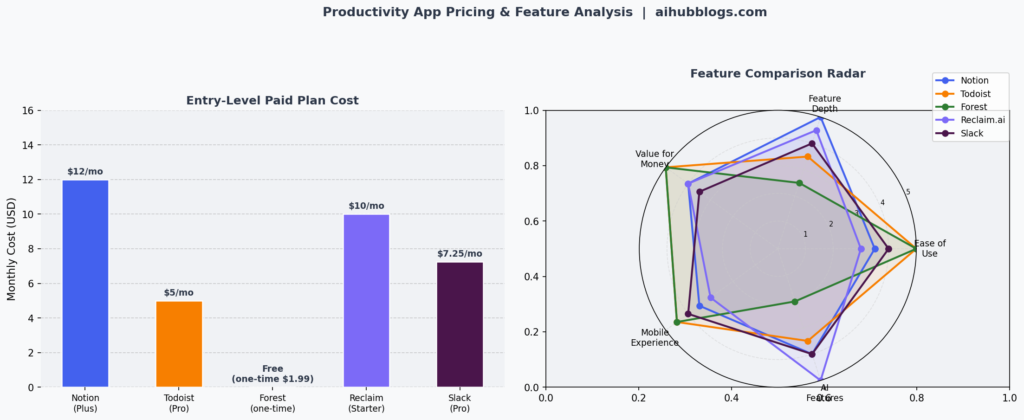
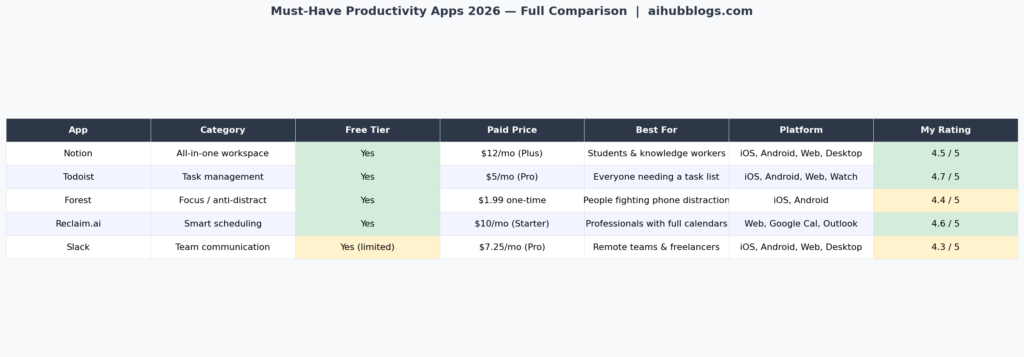
When finding an App for your work routine, it’s important that you consider where the friction resides in your daily activities.
- For getting items to do: Todoist
- For storing notes and information: Notion
- For Distracting yourself on Your Phone: Forest
- For Your Calendar Having No Focused Time: Reclaim.ai
- For Communicating with Your Team: Slack
If all five of these applications are downloaded, it does not mean that you are abandoning any of the other applications. They all solve different issues. Just make sure to use only one at a time until you build a routine and are comfortable with it, then try a new application.
Full Pricing Breakdown: All Plans Side by Side
| App | Free Tier | Entry Paid | Mid Tier | Power / Team |
|---|---|---|---|---|
| Notion | $0 (unlimited pages) | $12/mo (Plus) | $18/mo (Business) | Custom (Enterprise) |
| Todoist | $0 (5 projects) | $5/mo (Pro) | $8/mo (Business) | — |
| Forest | Free on Android | $1.99 one-time (iOS) | $2.99/mo (Pro) | — |
| Reclaim.ai | $0 (3 habits) | $10/mo (Starter) | $15/mo (Business) | Custom (Enterprise) |
| Slack | $0 (90-day history) | $7.25/mo (Pro) | $12.50/mo (Business+) | Custom (Enterprise) |
Final Thoughts
No single app can change how you produce results. However, by decreasing friction between your intentions and your ability to take action, these apps enable you to keep organised, maintain focus on your tasks, and communicate without being constantly interrupted.
The key lesson learned from my 6-week experiment was sequencing. I captured tasks (using Todoist), protected my focus (with Forest), and added schedule intelligence (using Reclaim). The sequence of tasks was completed in layers – with each having been in place as part of a new routine before adding complexity to the previous layer.
An effective productivity system is simply one that you will use consistently every day rather than one which is the most highly developed or advanced version of such a system.
FAQs: Must-Have Mobile Apps for Productivity in 2026
1. What are the best Apps for Productivity in 2026?
For 2026 there will be many great apps available to help increase our productivity. Out of many that we tested, the five that we found to be the most productive were Todoist for task management, Notion as an all-in-one workspace, Forest for focus and reducing distractions, Reclaim.ai is great for scheduling your calendar more intelligently and Slack for team communications.
2. How do productivity apps help improve daily performance?
Productivity apps help by reducing the number of daily decisions that you must make manually throughout your day. A task management app (like Todoist) will reduce the number of things you need to remember to do. A smart scheduler (like Reclaim.ai) will reduce the amount of time you waste during your focused time by scheduling your meetings intelligently. A focus app (like Forest) will reduce your desire to pick up your phone out of habit.
3. Are productivity apps suitable for students and professionals?
Yes, and most of the best ones are free to start. Students benefit most from Todoist (assignment tracking), Notion (note organisation), and Forest (distraction control during study sessions). Professionals benefit more from Reclaim.ai and Slack once their calendars and team communication become the primary friction points.
4. Do I need to pay for Apps for Productivity?
Not initially. Todoist, Notion, Forest (Android), Reclaim.ai’s starter tier, and Slack all have free plans that are functional for individual use. The paid plans add features like AI assistance, unlimited integrations, and team features but start free and upgrade only when you hit a specific limitation.
5. Which features should I look for in a productivity app?
Match the feature to the problem. For task management: natural language input, cross-device sync, and priority levels. For focus: phone blocking and session analytics. For scheduling: calendar integration and AI-based time blocking. For team use: threads, integrations, and notification controls. Avoid apps that list dozens of features but do not excel at any single job.
About the Author
Emily Carter is a freelance writer and digital productivity researcher based in the United States. Over the past four years, she’s tested and written about the tools, apps, and platforms that freelancers and remote workers rely on daily, from security software like password managers to the AI tools and side-income platforms that make up the modern freelance toolkit. She writes from firsthand use, not press releases.

